Lab 21: Intune Application Deployment and Microsoft 365 Apps
Used Microsoft Intune to deploy Company Portal and Microsoft 365 Apps as required software, publish Adobe Acrobat Reader and Microsoft PowerToys for self-service installation, and validate availability, installation status and licensed Word access.
Overview
This lab applies two common Intune application-delivery models. Core software was assigned as Required for automatic installation, while approved non-essential applications were assigned as Available for enrolled devices through Company Portal.
The deployment used separate pilot groups for user-targeted and device-targeted assignments. Company Portal, Adobe Acrobat Reader and PowerToys were scoped through the user pilot group. Microsoft 365 Apps was assigned to the managed Windows pilot device group so the productivity suite formed part of the device baseline.
Objective
The objective was to configure, assign and validate a practical Intune application catalogue for a managed Windows endpoint. The lab covered required deployment, user self-service, featured applications, system and user installation contexts, Microsoft 365 Apps configuration, deployment monitoring and user-side licence validation.
Environment
| Component | Value |
|---|---|
| Company | Nietz Ltd |
| Tenant Domain | nietz.co.uk |
| Management Platform | Microsoft Intune |
| Managed Endpoint | CL2 |
| Assigned User | Chloe Bennett — [email protected] |
| User Pilot Group | GRP_Intune_Pilot |
| Windows Device Pilot Group | GRP_Intune_Windows_Pilot_Devices |
| Required Store Application | Company Portal |
| Available Applications | Adobe Acrobat Reader DC and Microsoft PowerToys |
| Required Productivity Suite | Microsoft 365 Apps |
Configuration and Evidence
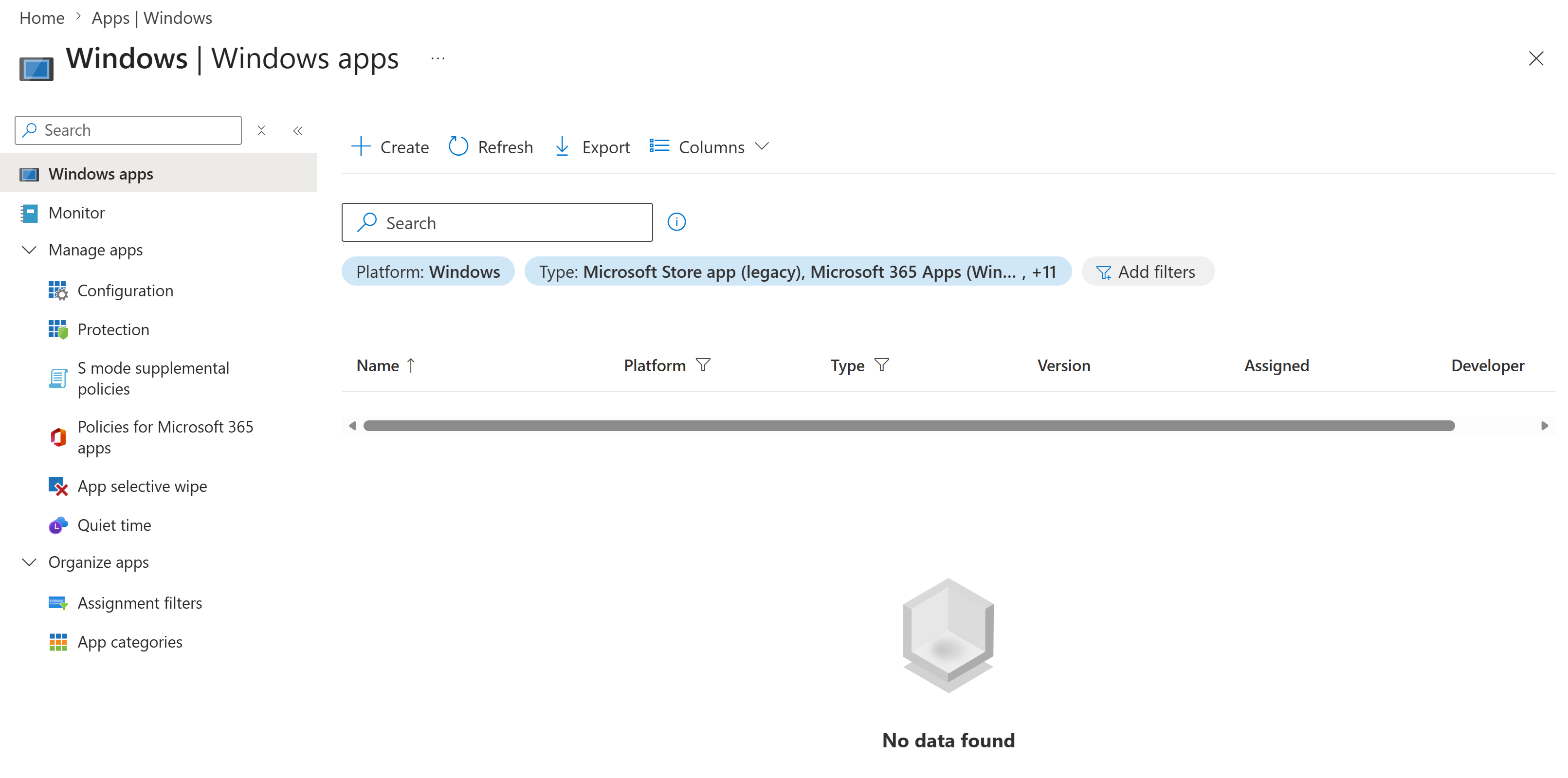
1. Windows Application Baseline
I opened the Windows applications area in Intune before creating the new deployments. This established the starting point for the lab.
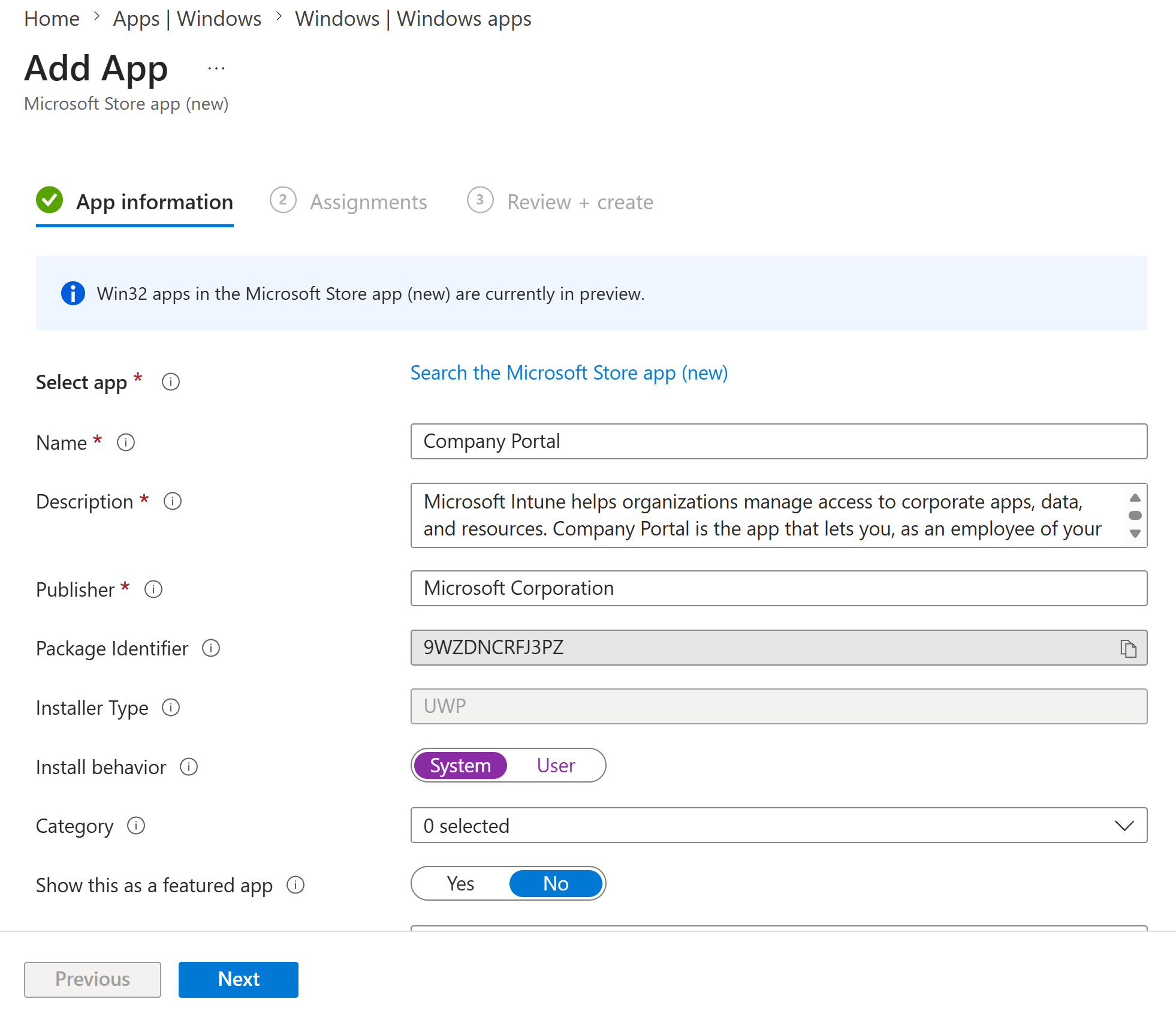
2. Company Portal Application Configuration
I selected Company Portal from Microsoft Store app (new). The application used the UWP installer type and System install behaviour so it could be delivered as a managed corporate application.
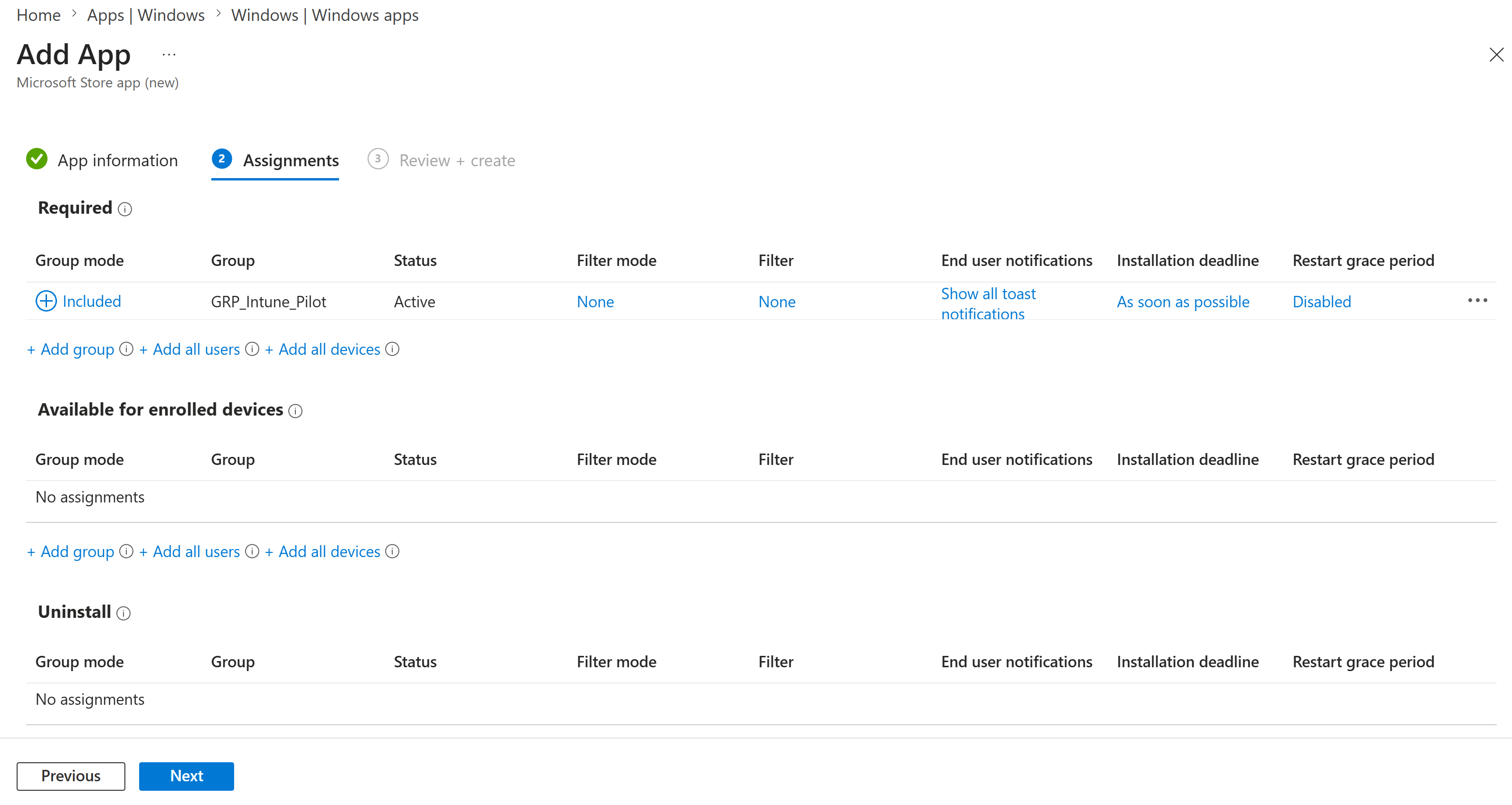
3. Company Portal Required Assignment
I assigned Company Portal as Required to GRP_Intune_Pilot. Members of the user pilot group therefore received Company Portal automatically rather than installing it manually.
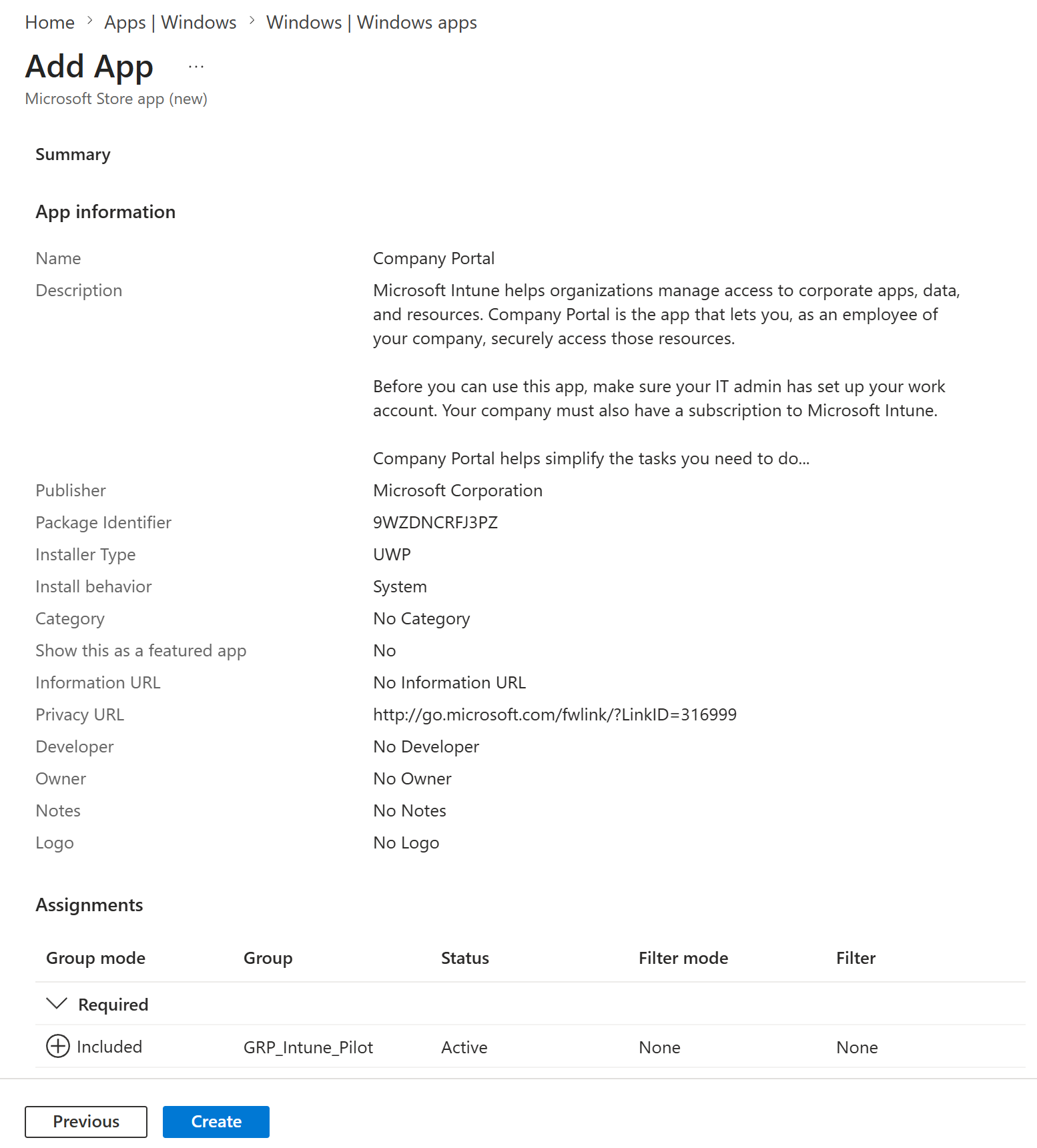
4. Company Portal Review
I reviewed the application metadata, System installation context and required pilot-group assignment before creation.
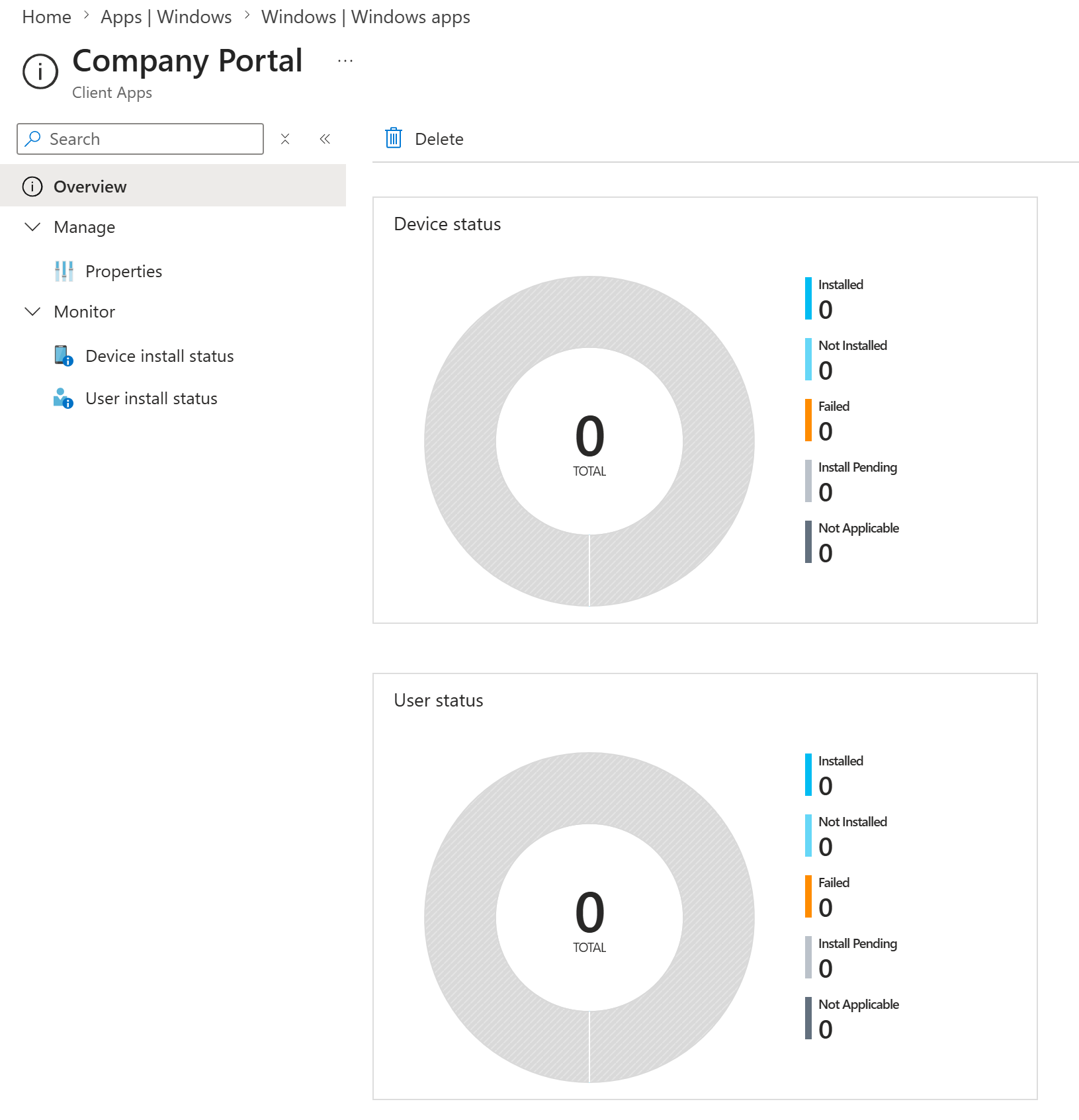
5. Company Portal Deployment Created
I created the Company Portal deployment. The initial overview showed the application object before endpoint reporting had populated.
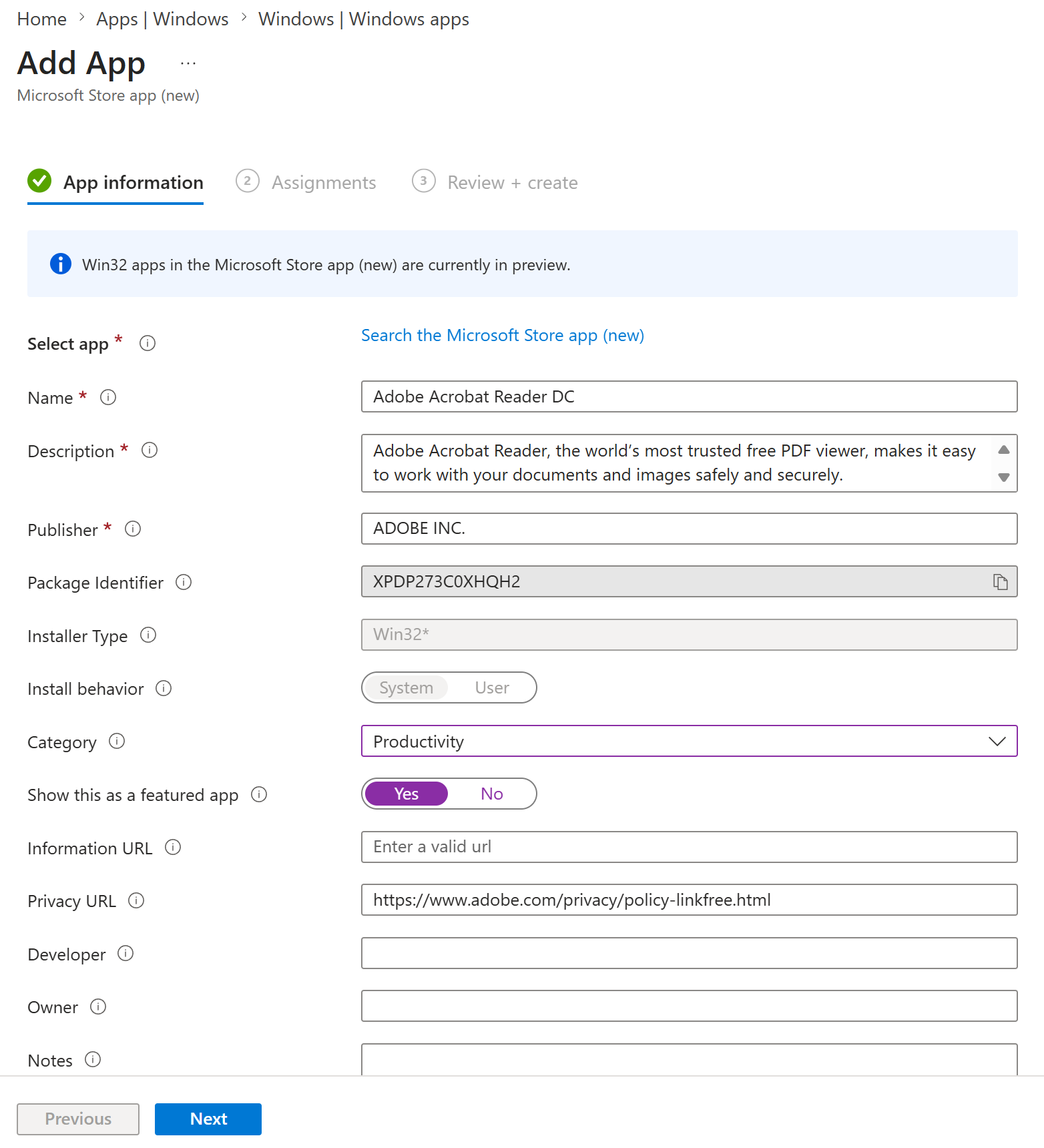
6. Adobe Acrobat Reader Application Configuration
I added Adobe Acrobat Reader DC from Microsoft Store app (new). The Win32 application used System install behaviour, the Productivity category and the Featured application setting.
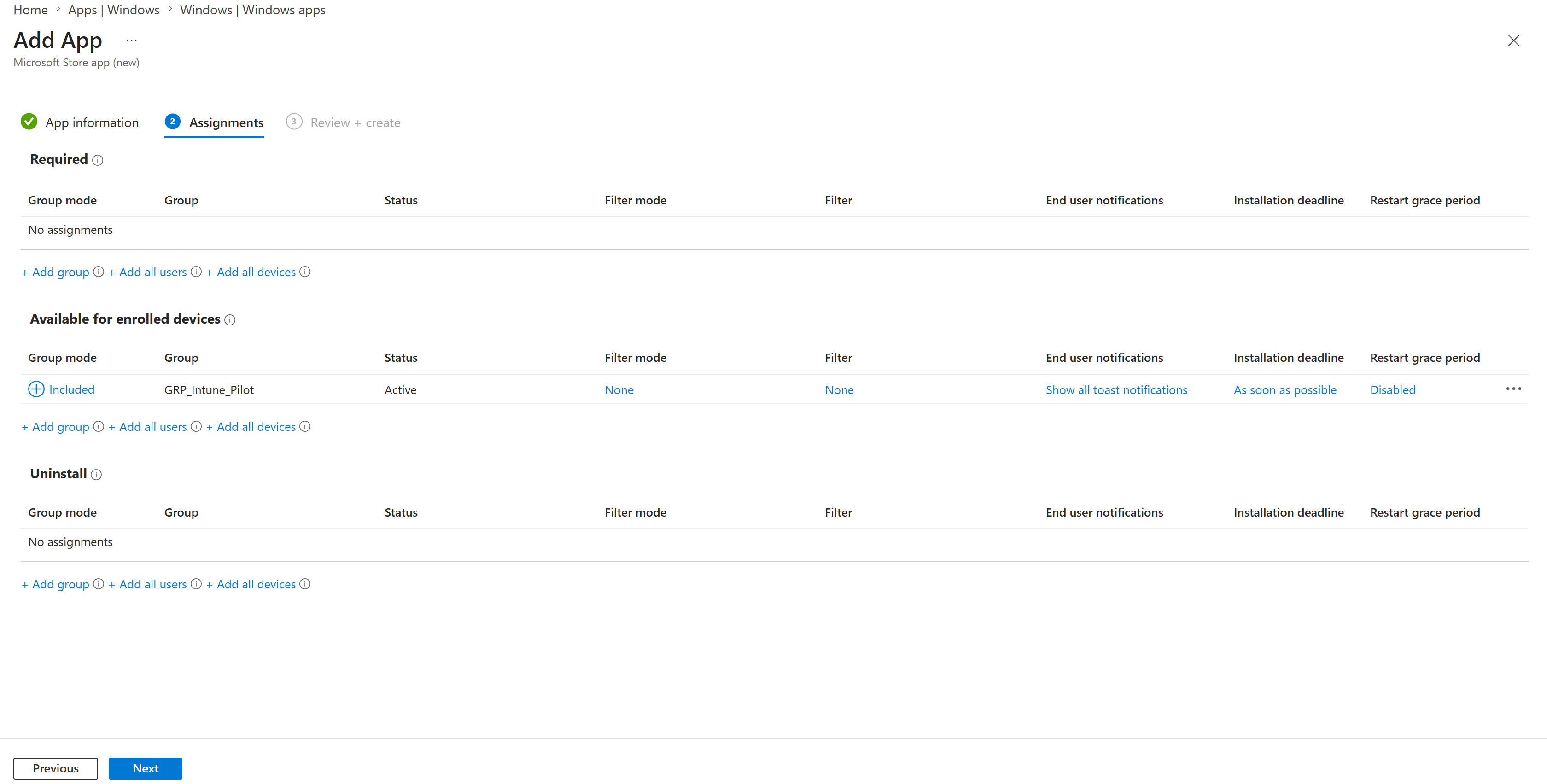
7. Adobe Self-Service Assignment
I assigned Adobe as Available for enrolled devices to GRP_Intune_Pilot. This made the approved PDF reader available for user-initiated installation from Company Portal.
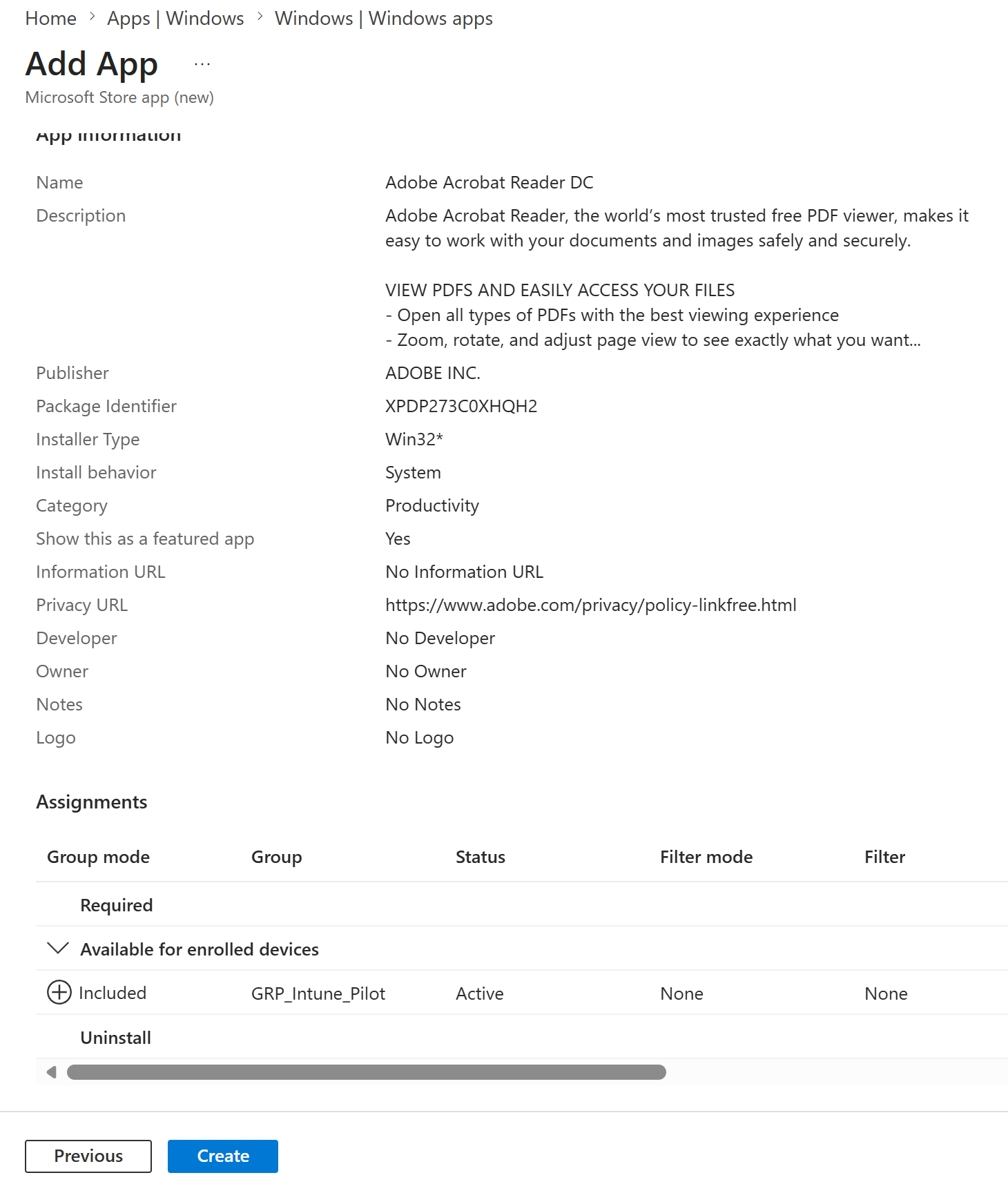
8. Adobe Review
I reviewed the Win32 application metadata, System install behaviour, featured setting and available assignment before creating the Adobe deployment.
9. Microsoft PowerToys Application Configuration
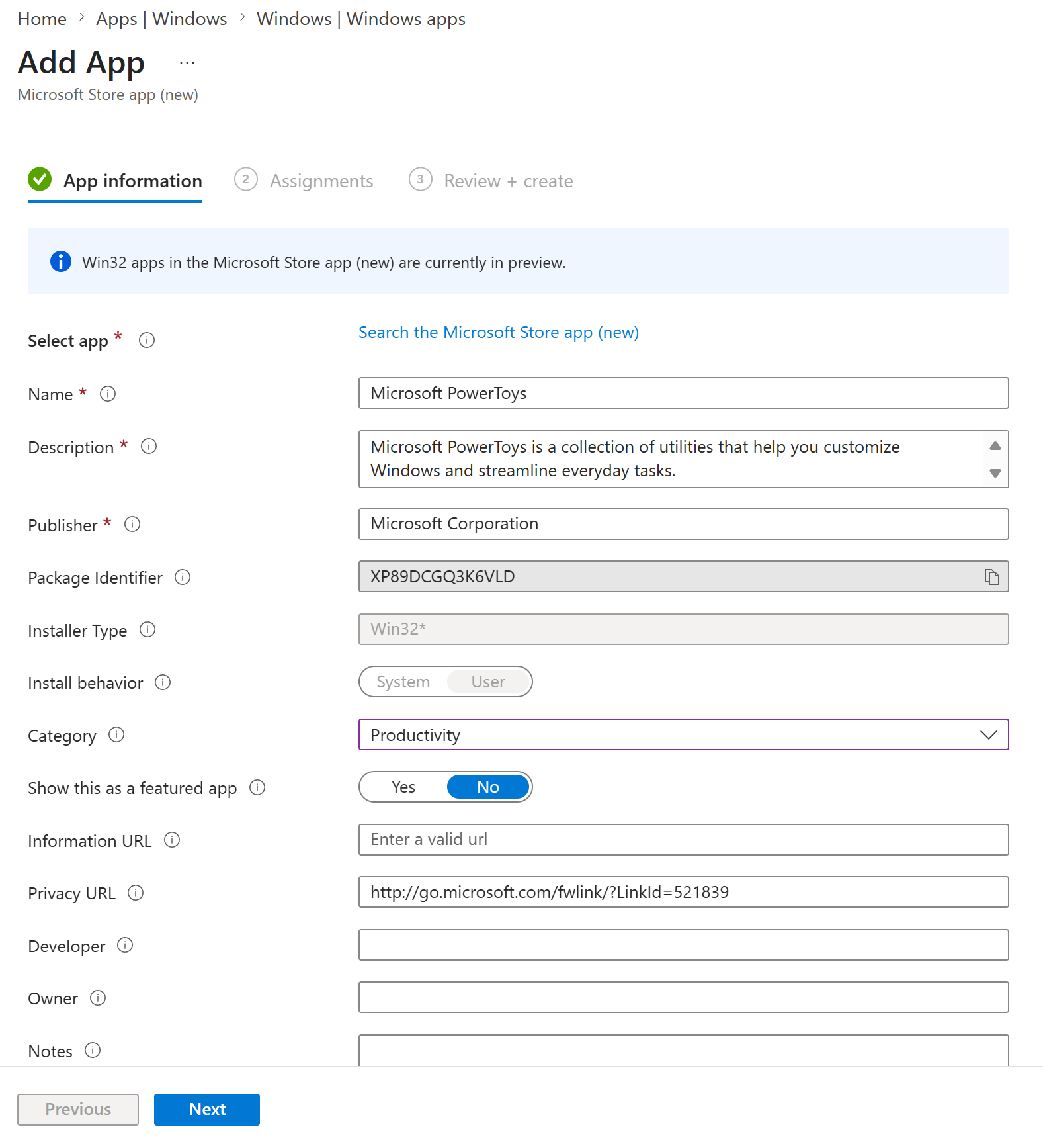
I added Microsoft PowerToys as a second approved self-service application. It used the Win32 installer type, User install behaviour and the Productivity category.
10. PowerToys Self-Service Assignment
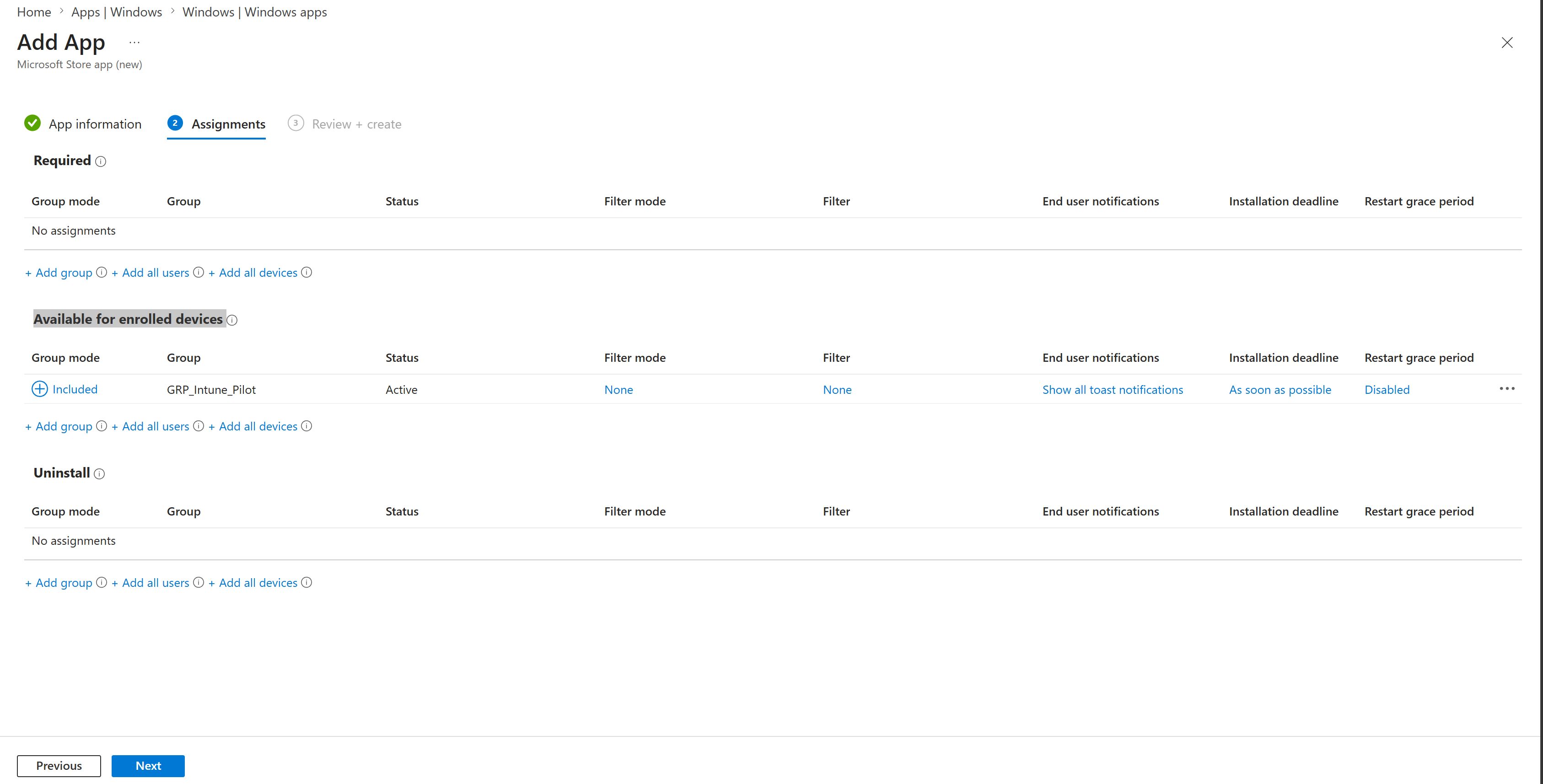
I assigned PowerToys as Available for enrolled devices to GRP_Intune_Pilot, allowing pilot users to choose whether to install the utility.
11. PowerToys Review
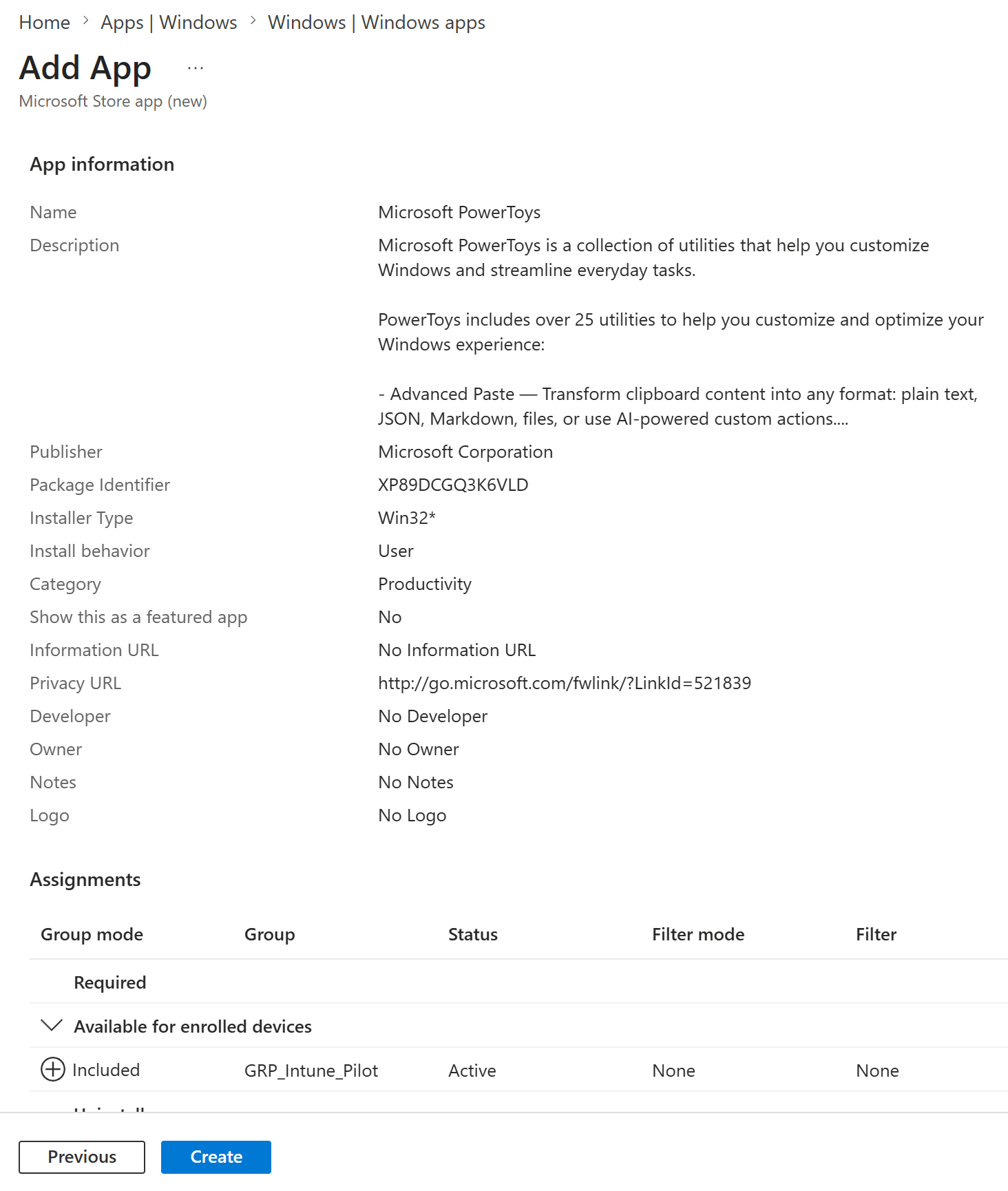
I reviewed the Microsoft publisher details, User installation context, Productivity category and available assignment before creation.
12. Microsoft 365 Apps Suite Information
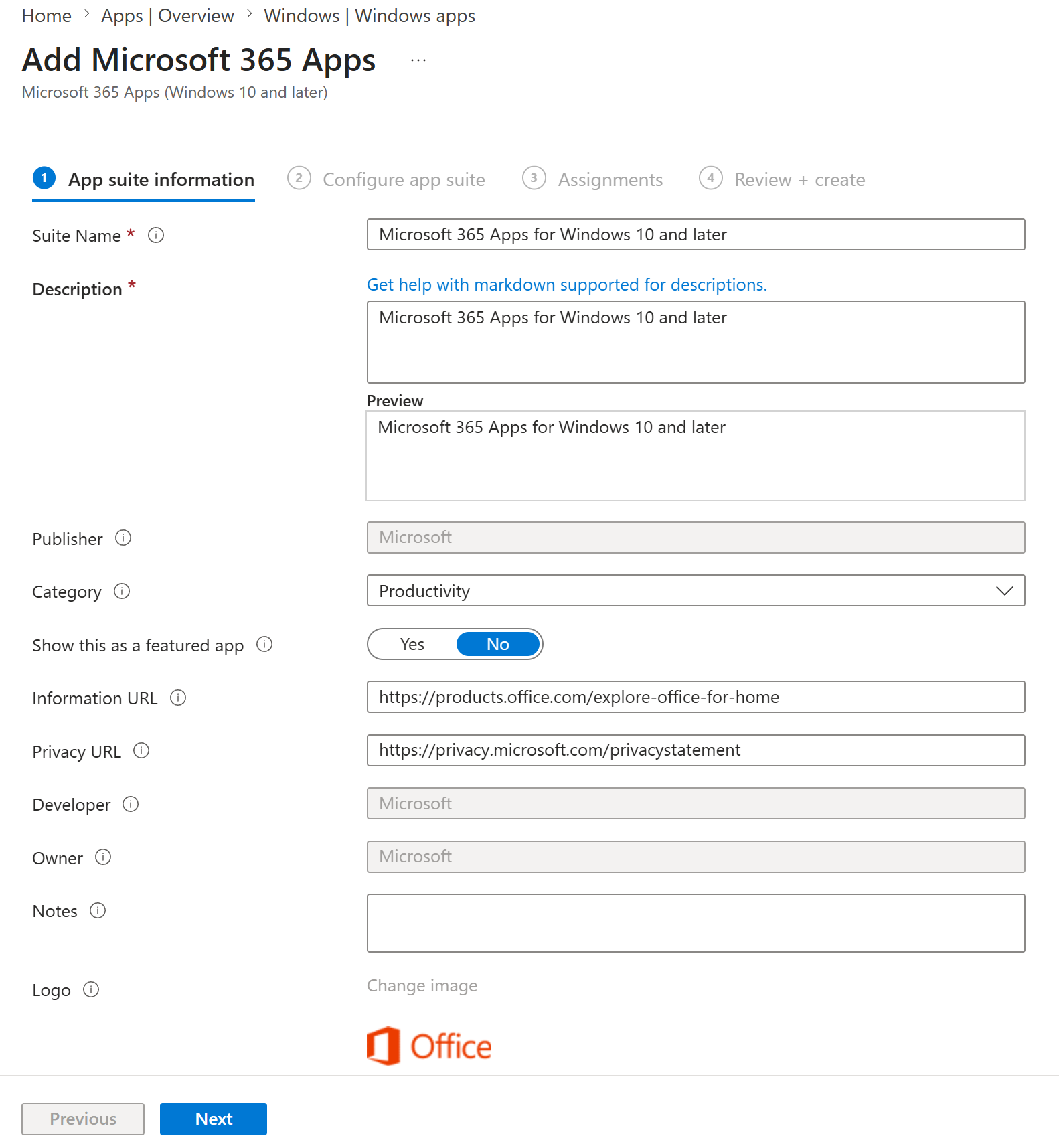
I created a dedicated Microsoft 365 Apps deployment for Windows 10 and later. The suite was categorised as Productivity and was not promoted as a featured optional application because it would be installed automatically.
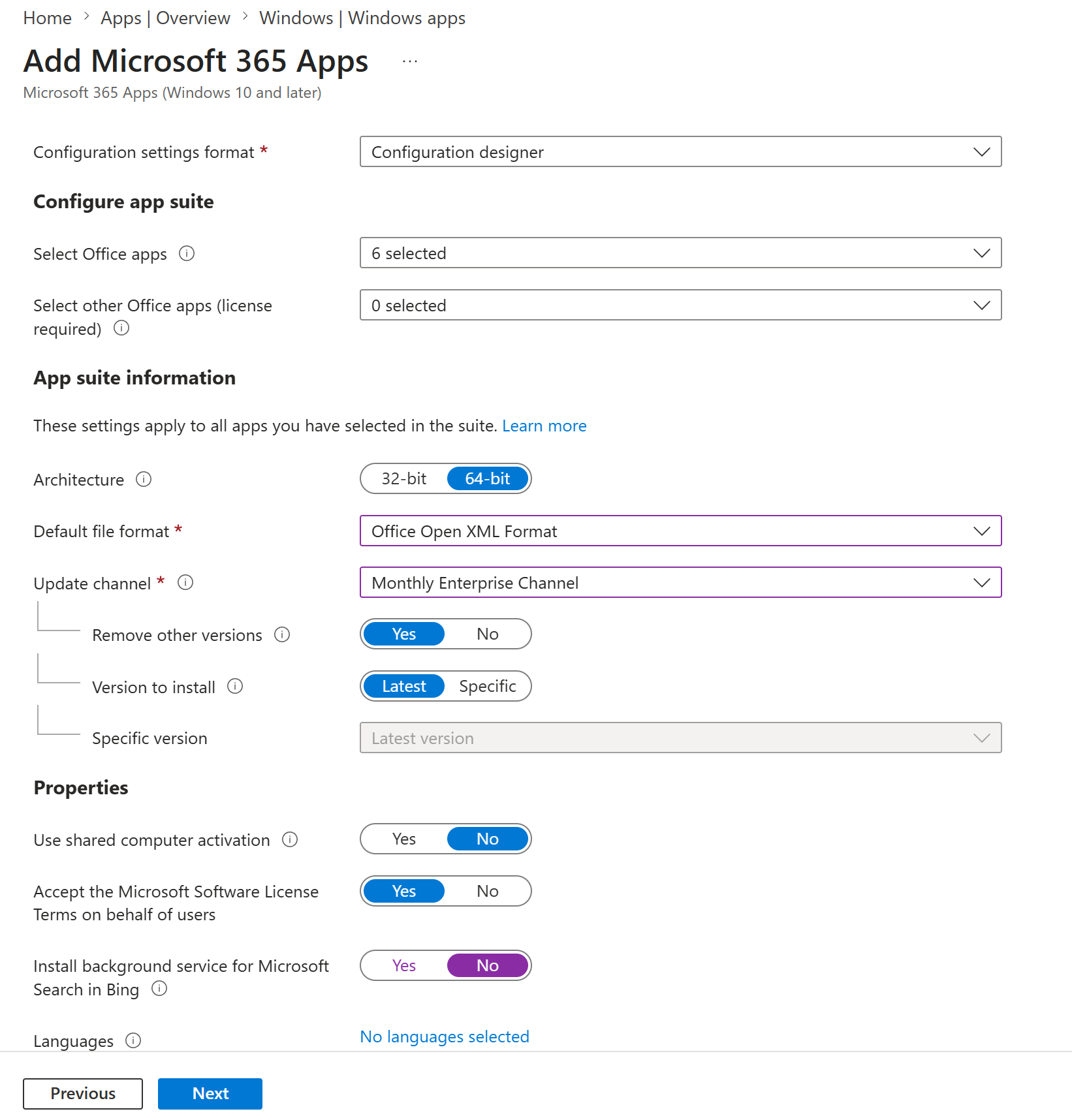
13. Microsoft 365 Apps Suite Configuration
I selected Excel, OneNote, Outlook, PowerPoint, Teams and Word. The deployment used 64-bit architecture, Office Open XML formats, Monthly Enterprise Channel and the latest available build. Existing Office versions were set to be removed, shared computer activation was disabled, licence terms were accepted, and the retired Microsoft Search in Bing background service was not installed.
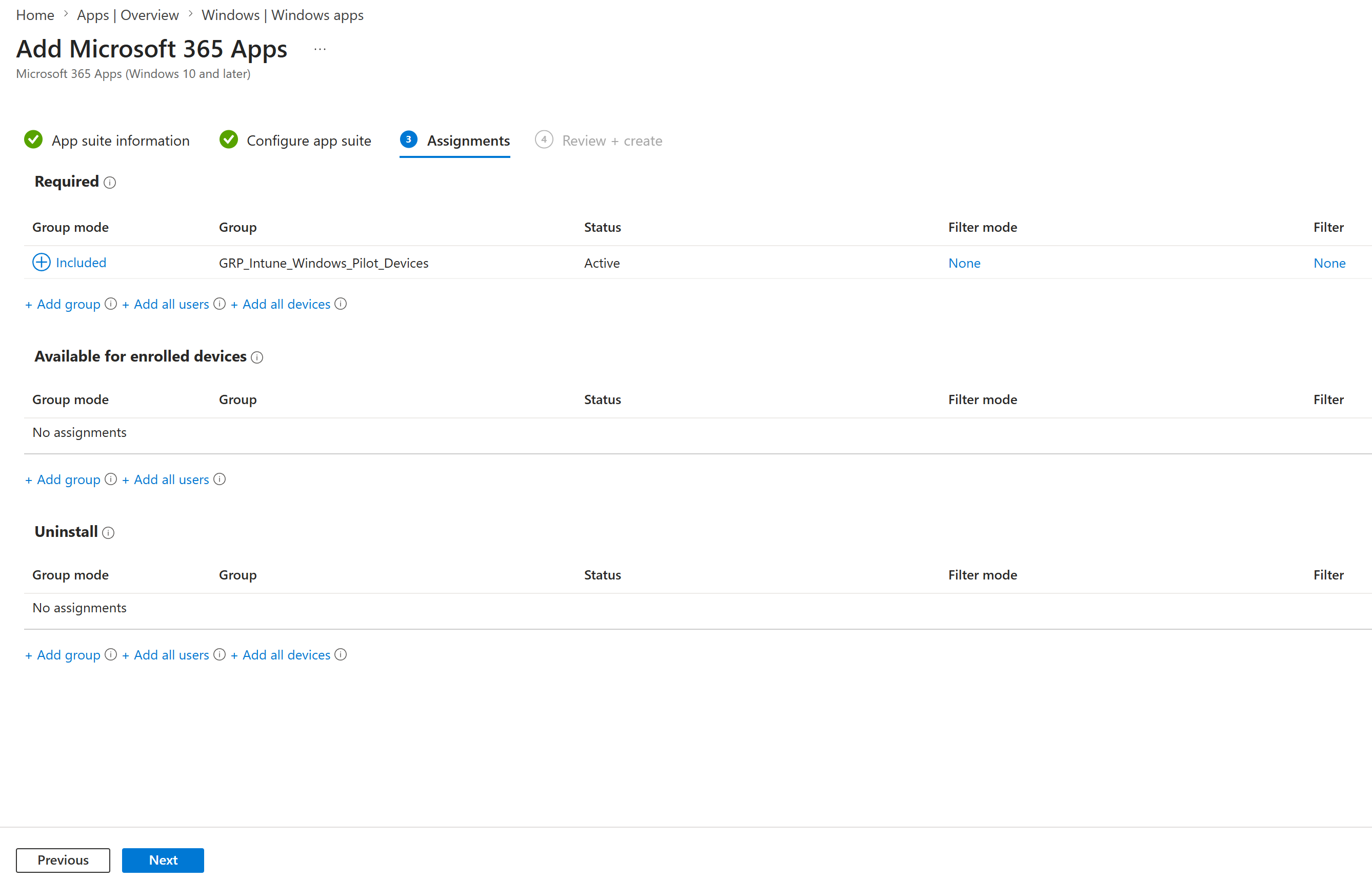
14. Microsoft 365 Apps Required Device Assignment
I assigned Microsoft 365 Apps as Required to GRP_Intune_Windows_Pilot_Devices. Device targeting made Office part of the managed Windows baseline rather than an optional user catalogue item.
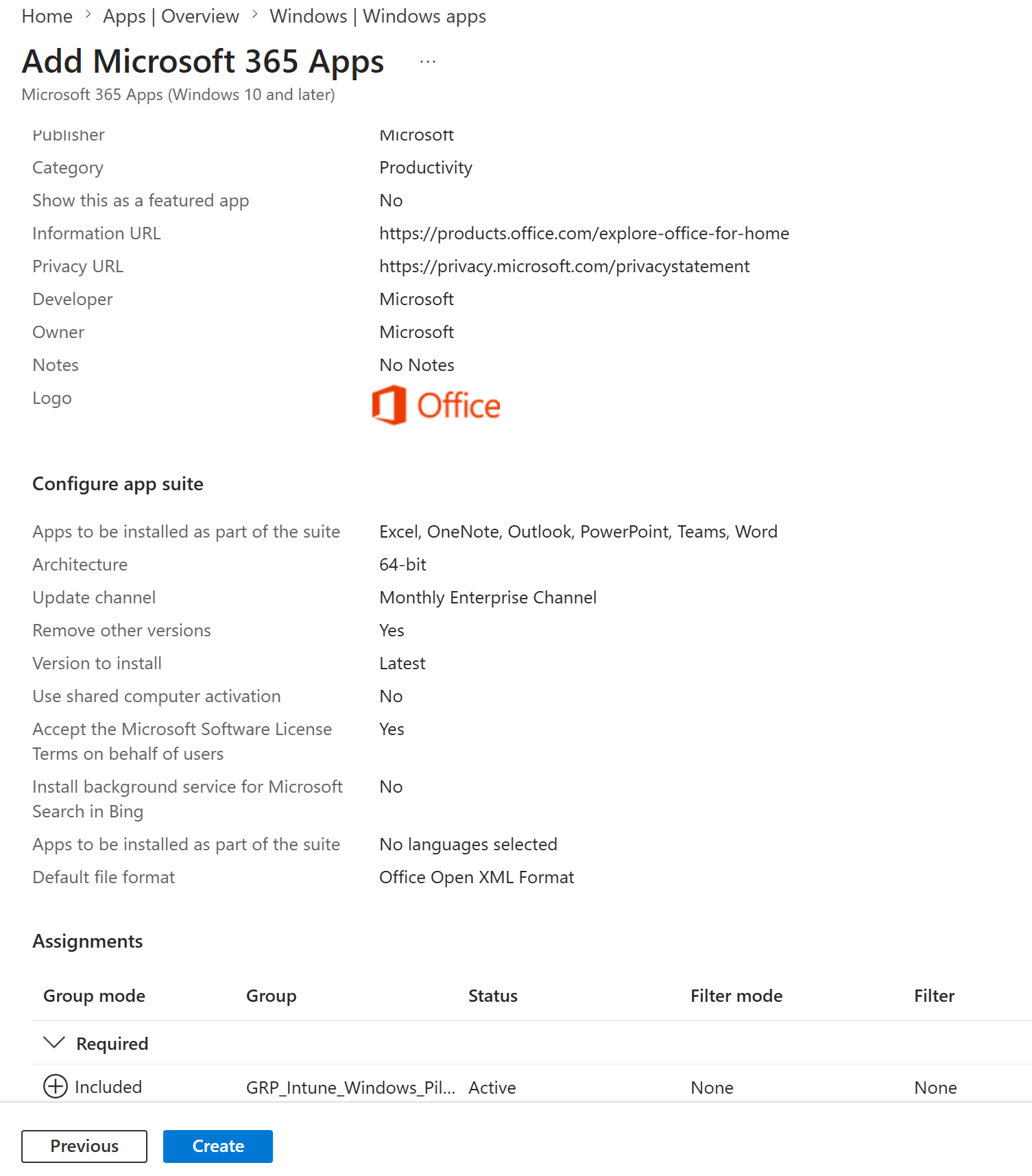
15. Microsoft 365 Apps Review
I reviewed the selected applications, architecture, update channel, version controls, activation settings and required device-group assignment before creating the suite.
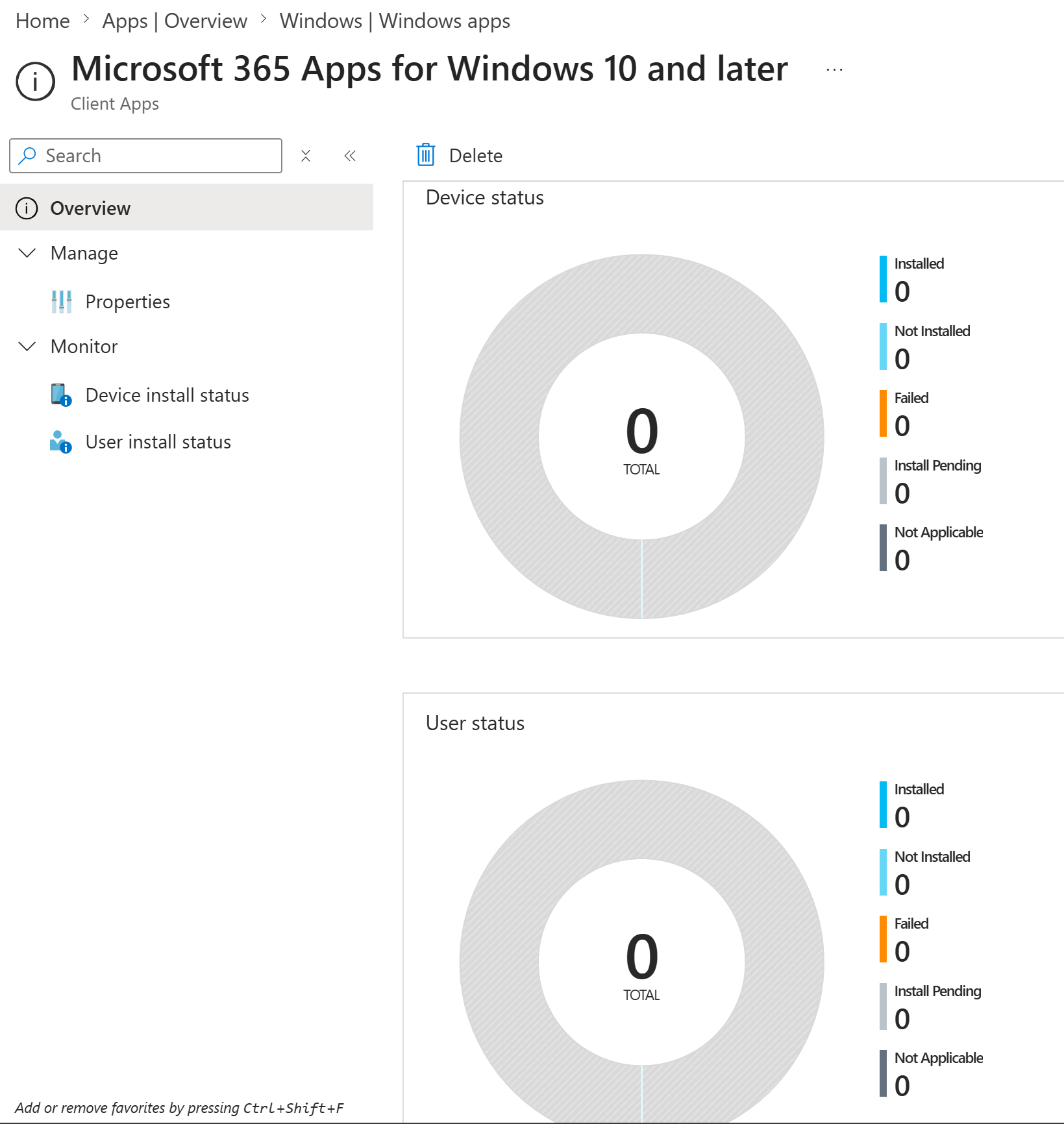
16. Microsoft 365 Apps Deployment Created
I created the Microsoft 365 Apps deployment. The initial overview showed the application object before the managed endpoint had reported its installation result.
Validation
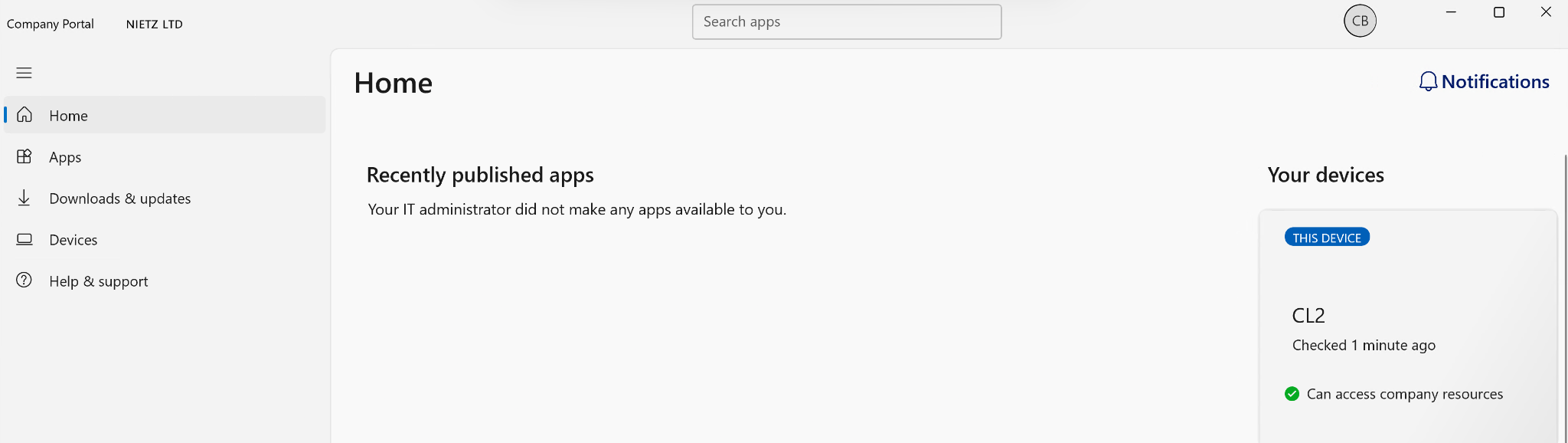
17. Company Portal Installed and Connected on CL2
I opened Company Portal on CL2 and confirmed that the managed device could access Nietz Ltd company resources. The relative check-in label confirms recent device communication without exposing an exact calendar date or clock time.
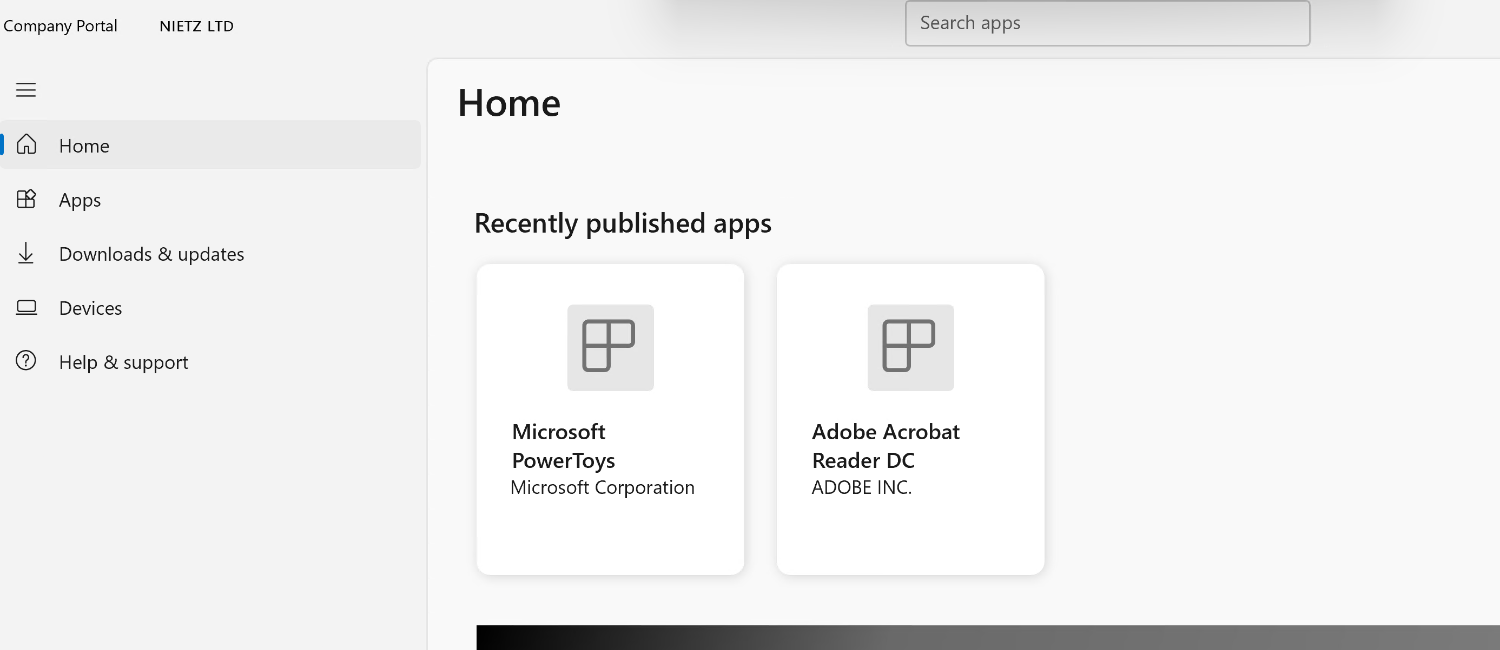
18. Approved Applications Available in Company Portal
I opened Company Portal as Chloe Bennett and confirmed that Adobe Acrobat Reader DC and Microsoft PowerToys were published in the application catalogue.
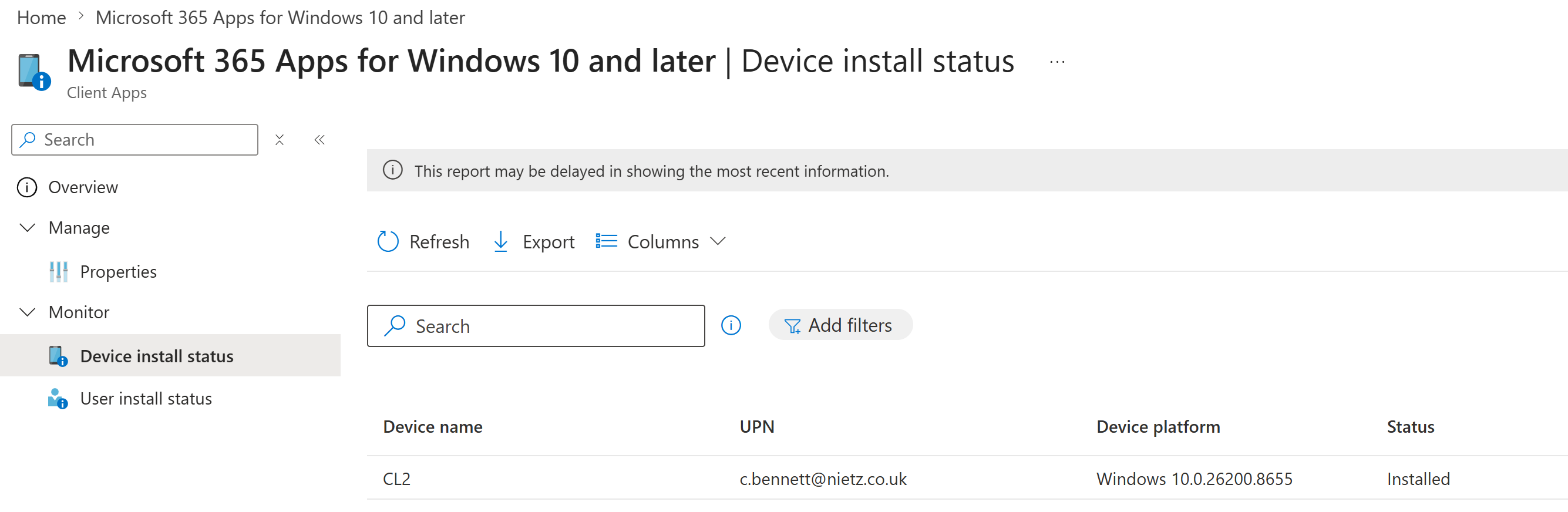
19. Microsoft 365 Apps Installed on CL2
I checked the Intune device installation report and confirmed that CL2 reported the Microsoft 365 Apps deployment as Installed for Chloe Bennett.
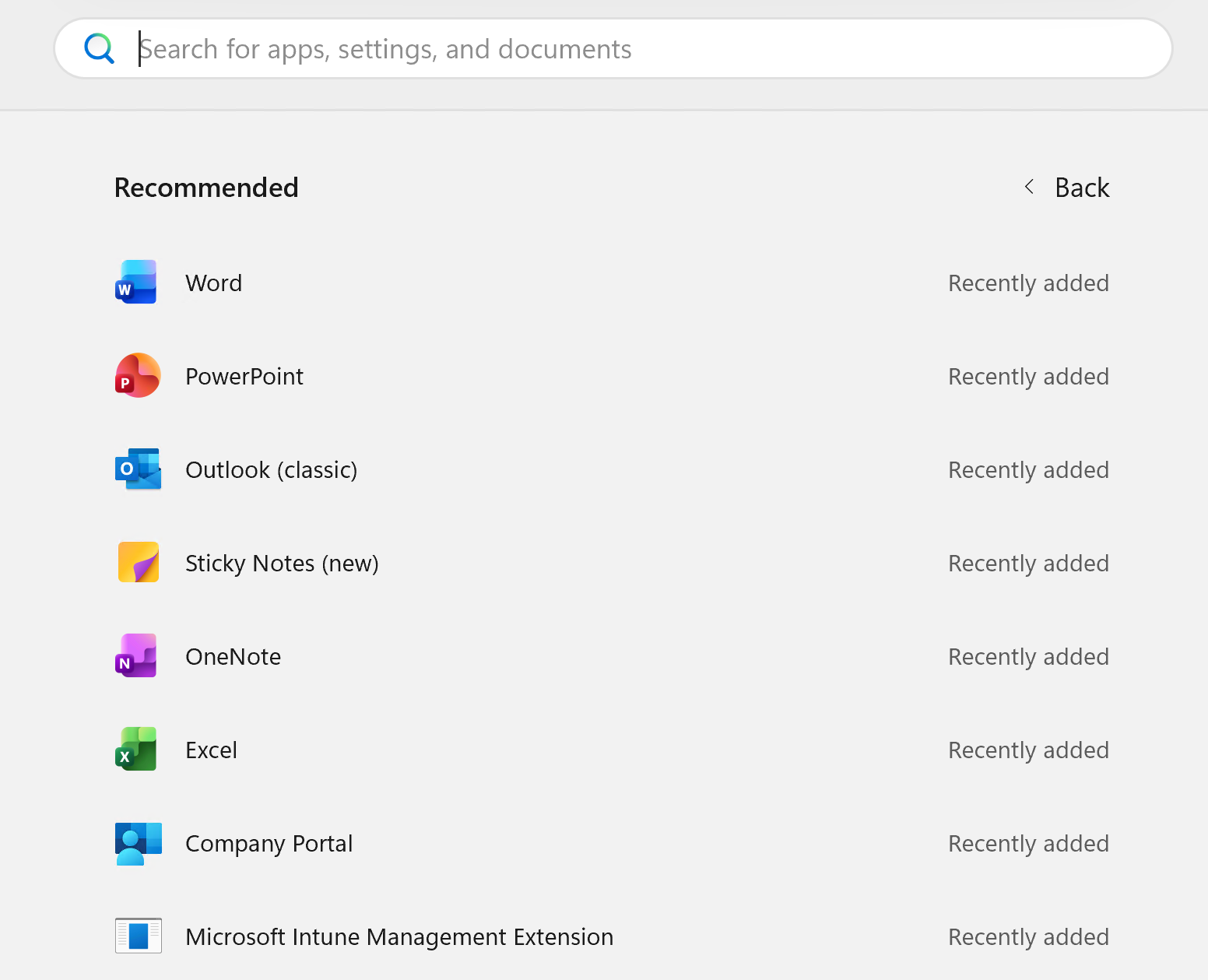
20. Microsoft 365 Applications Visible on CL2
I confirmed from the Windows application list that the deployed Office applications, including Word, PowerPoint, Outlook, OneNote and Excel, were available on CL2.
21. Word Licence and Connected Services Validation
I opened Word and confirmed that Chloe Bennett was signed in with her Nietz Ltd account. Word recognised the Microsoft 365 Apps for business subscription, and OneDrive and SharePoint services for Nietz Ltd were connected.
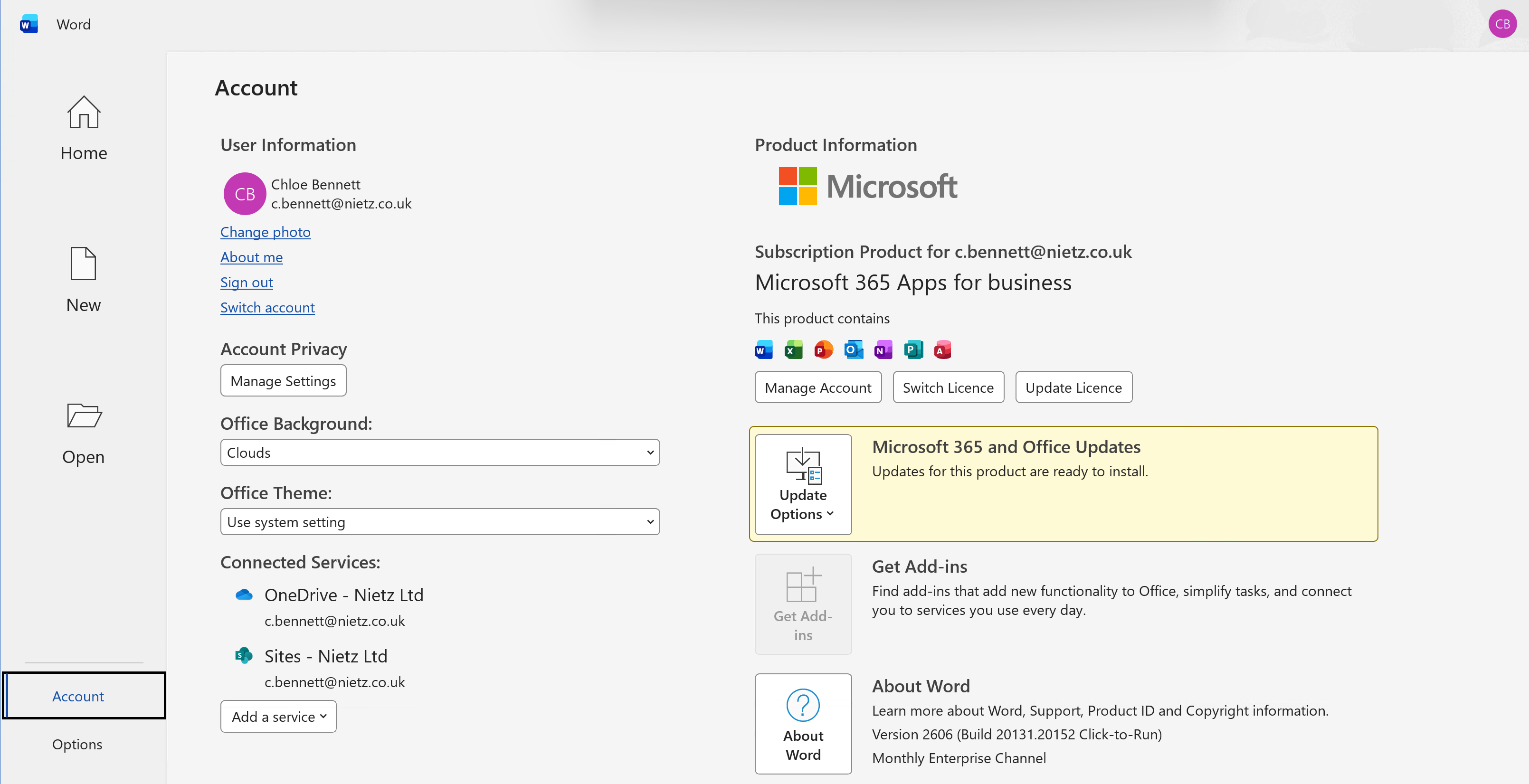
The validation confirmed four distinct outcomes: Company Portal was installed and connected on CL2, approved optional applications were available to the pilot user, Microsoft 365 Apps installed automatically on the targeted device, and Word opened under the assigned user’s licensed account.
Key Technical Outcomes
- Deployed Company Portal as a required Microsoft Store application.
- Published Adobe Acrobat Reader as a featured self-service application.
- Published Microsoft PowerToys as a standard self-service application.
- Used both System and User installation behaviours for appropriate application types.
- Separated user-targeted optional applications from a device-targeted required productivity suite.
- Configured Microsoft 365 Apps with six selected applications, 64-bit architecture and Monthly Enterprise Channel.
- Confirmed successful Microsoft 365 Apps installation on CL2 through Intune reporting.
- Validated licensed Word access and connected Nietz Ltd cloud services for Chloe Bennett.
Summary
- Configured Company Portal as a required application for pilot users.
- Published Adobe Acrobat Reader and Microsoft PowerToys as approved self-service applications.
- Configured Microsoft 365 Apps as a required device-targeted deployment for the Windows pilot group.
- Separated user-targeted optional software from device-targeted core productivity applications.
- Validated Company Portal availability, successful installation on CL2 and licensed Microsoft 365 application access for Chloe Bennett.